
Free License
DRIOP-IH6I-Z4GF-H6HB-STBM
🚀 New ? 👉 Create your RedotPay account
Enjoying our free SEO WordPress plugin?
You can support our work by buying us a coffee ☕ via USDT: DONATE NOW →
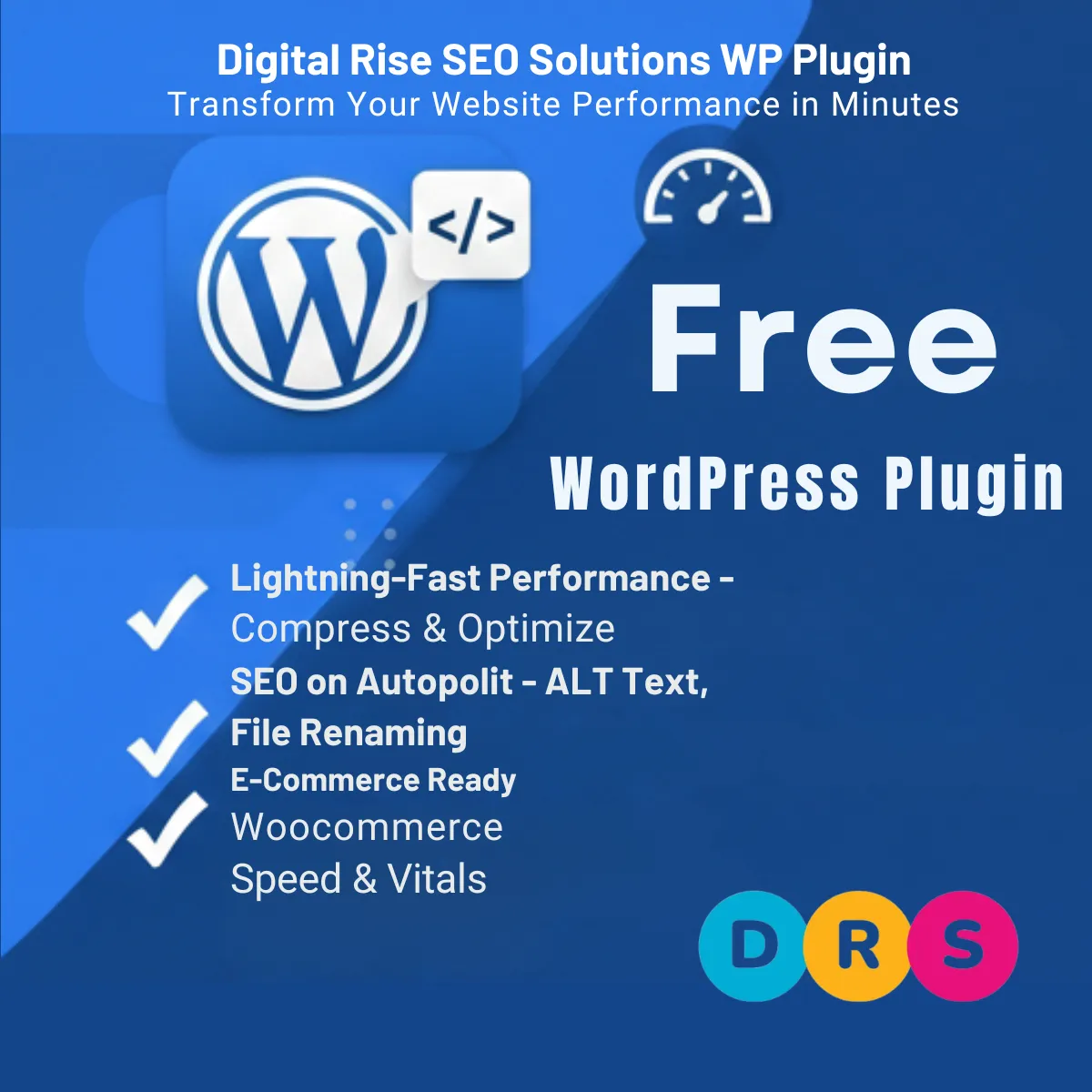
Digital Rise SEO Solutions WP Plugin
Professional Image Optimization, SEO Automation for WordPress
🚀 Transform Your Website Performance in Minutes
Digital Rise SEO Solutions WP Plugin is the ultimate all-in-one solution for WordPress image optimization, SEO automation, and brand protection. Whether you’re running a blog, an online store with WooCommerce, or a multi-vendor marketplace with Dokan – our plugin handles everything automatically.
Stop losing visitors to slow loading times. Stop missing SEO opportunities. Start optimizing today!
✨ Why Choose Our Plugin?
⚡ Lightning-Fast Performance
Automatically compress images to your target file size (default 50KB) without losing quality. Faster websites mean better user experience and higher Google rankings.
🎯 SEO on Autopilot
Never worry about image SEO again. Our plugin automatically generates optimized ALT text, renames files with SEO-friendly names, and creates meta descriptions using your custom keywords.
🛒 E-Commerce Ready
Full integration with WooCommerce and Dokan marketplace. Optimize product images, set vendor limits, and boost your store’s performance.
🔧 CSS & JS Optimization
Beyond images! Minify your CSS and JavaScript files to further improve page speed and Core Web Vitals scores.
📋 Complete Feature List
Image Optimization
- ✅ Automatic compression to target file size
- ✅ Smart resizing to maximum dimensions
- ✅ Quality preservation technology
- ✅ Support for JPEG, PNG, GIF, and WebP
- ✅ Bulk optimization for existing images
- ✅ Per-image or automatic processing
SEO Automation
- ✅ Auto-generate ALT text
- ✅ Auto-rename image files
- ✅ Auto-generate descriptions
- ✅ SEO titles for pages, posts, products
- ✅ Meta descriptions automation
- ✅ Category & tag SEO support
- ✅ Dynamic variables system
- ✅ Custom keyword management
Performance Optimization
- ✅ CSS minification
- ✅ JavaScript minification
- ✅ Exclude specific files
- ✅ Cache management
- ✅ One-click cache clearing
Integrations
- ✅ WooCommerce (5.0+)
- ✅ WooCommerce HPOS compatible
- ✅ Dokan Marketplace
- ✅ Multi-vendor support
- ✅ Vendor image limits
Dashboard & Analytics
- ✅ Optimization statistics
- ✅ Space savings tracking
- ✅ Image status overview
- ✅ Quick action buttons
- ✅ Connection status monitoring
💎 Choose Your Plan
FREE PLAN
Perfect for bloggers and small websites
- ✅ Basic image optimization
- ✅ Auto ALT text generation
- ✅ Auto image renaming
- ✅ Auto descriptions
- ✅ WooCommerce integration
- ✅ Dokan integration
- ✅ CSS/JS minification
- ✅ Bulk optimization
Price: FREE Forever
PRO PLAN
Ideal for businesses and online stores
Everything in Free, plus:
- ✅ Custom keywords (unlimited)
- ✅ Priority email support
- ✅ Remove attribution link
- ✅ Advanced SEO patterns
Price: Contact us for pricing
AGENCY PLAN
For developers and agencies
Everything in Pro, plus:
- ✅ Unlimited website licenses
- ✅ White-label option
- ✅ API access
- ✅ Priority support
- ✅ Custom feature requests
Price: Contact us for pricing
📖 Installation Guide
Step 1: Download the Plugin
Download the digital-rise-image-optimizer-pro.zip file from our website.
Step 2: Install the Plugin
Option A: Via WordPress Dashboard (Recommended)
- Log in to your WordPress admin panel
- Navigate to Plugins → Add New
- Click the Upload Plugin button at the top
- Click Choose File and select the downloaded ZIP file
- Click Install Now
- Wait for the installation to complete
- Click Activate Plugin
Option B: Manual Installation via FTP
- Extract the ZIP file on your computer
- Connect to your server using FTP (FileZilla, etc.)
- Navigate to
/wp-content/plugins/ - Upload the
digital-rise-image-optimizer-profolder - Go to WordPress admin → Plugins
- Find “Digital Rise SEO Solutions “
- Click Activate
Step 3: Initial Configuration
After activation, you’ll be redirected to the plugin dashboard. Here’s what to do next:
🎓 Complete Usage Guide
Setting Up Image Optimization
- Go to Image Optimizer → Optimization in your WordPress menu
- Configure your settings:
- Max Width: Maximum image width (default: 1920px)
- Max Height: Maximum image height (default: 1080px)
- Target File Size: Desired file size in KB (default: 50KB)
- Compression Quality: Balance between quality and size (default: 82%)
- Choose whether to enable Auto Compress on upload
- Click Save Settings
💡 Pro Tip: For product images, we recommend 1200px width and 60KB target size for the best balance of quality and speed.
Adding Keywords for SEO
- Go to Image Optimizer → Keywords
- Enter your keywords in the text area (one per line)
- Examples:
best products onlinequality guaranteedfree shippingtop rated sellerpremium quality - Click Save Keywords
- Set your SEO pattern using variables like:
{site_name}– Your website name{content_title}– Page/post title{keyword}– Random keyword from your list
Example Pattern: {keyword} - {content_title} | {site_name}
Result: “Premium Quality – Blue Running Shoes | My Store”
Configuring SEO Titles & Meta Descriptions
- Go to Image Optimizer → SEO Titles
- Enable Page SEO option
- Set your default patterns:
Default Title Pattern:
{title} | {site_name}
Default Meta Description:
{excerpt}
Available Variables:
| Variable | Description |
|---|---|
{title} |
Page/Post/Product title |
{site_name} |
Your website name |
{site_tagline} |
Your website tagline |
{excerpt} |
Content excerpt (first 160 chars) |
{category} |
Primary category name |
{tags} |
Tags (comma separated) |
{author} |
Author display name |
{date} |
Publication date |
{year} |
Current year |
{month} |
Current month name |
{keyword} |
Random keyword from your list |
{product_price} |
Product price (WooCommerce) |
{product_sku} |
Product SKU (WooCommerce) |
{parent_title} |
Parent page/category title |
{count} |
Number of items (for archives) |
Example Patterns for E-Commerce:
- Product Title:
Buy {title} - {product_price} | {site_name} - Product Meta:
Shop {title} at best price. {excerpt} Free shipping available! - Category Title:
{title} - Browse {count} Products | {site_name}
Bulk Optimizing Existing Images
- Go to Image Optimizer → Bulk Optimize
- You’ll see:
- Total images in your library
- Already optimized images
- Remaining images to process
- Choose options:
- ☑️ Apply SEO (ALT text, rename, description)
- ☑️ Re-optimize already optimized images
- Click Start Bulk Optimization
- Wait for the process to complete (do not close the page)
⚠️ Important: For large libraries (1000+ images), run bulk optimization during low-traffic hours. The process is server-intensive.
Enabling CSS & JS Minification
- Go to Image Optimizer → Settings
- Find the CSS & JS Optimization section
- Enable options:
- ☑️ Minify CSS
- ☑️ Minify JavaScript
- Add exclusions if needed (one handle per line):
jquery-coreelementor-frontend - Click Save Settings
💡 Pro Tip: Test your site after enabling minification. If something breaks, add the problematic script/style handle to exclusions.
WooCommerce Setup
The plugin automatically integrates with WooCommerce. Additional settings:
- Go to Image Optimizer → Settings
- Ensure WooCommerce Integration is enabled
- Go to Image Optimizer → Optimization
- Set Max Images per Product (default: 10)
Product images will now be:
- ✅ Automatically compressed on upload
- ✅ Renamed with SEO-friendly names
- ✅ Given optimized ALT text
Dokan Marketplace Setup
For multi-vendor stores using Dokan:
- Go to Image Optimizer → Settings
- Ensure Dokan Integration is enabled
- Go to Image Optimizer → Optimization
- Set Max Images per Vendor (default: 50)
Each vendor will have:
- ✅ Individual image limits
- ✅ Automatic optimization on their uploads
- ✅ SEO automation for their products
Activating Your License (Pro/Agency)
- Go to Image Optimizer → License
- Enter your license key in the field
- Click Activate License
- Your plan will be upgraded immediately
Where to find your license key:
- Check your purchase confirmation email
- Log in to your account at digital-rise-solutions.com
- Contact support at seo.oussama@gmail.com
⚙️ System Requirements
| Requirement | Minimum | Recommended |
|---|---|---|
| WordPress | 5.8+ | 6.0+ |
| PHP | 7.4+ | 8.0+ |
| MySQL | 5.6+ | 8.0+ |
| Memory Limit | 128MB | 256MB+ |
| Max Execution Time | 120s | 300s+ |
| GD Library | Required | Required |
| WooCommerce | 5.0+ | 8.0+ |
❓ Frequently Asked Questions
Q: Will this slow down my website? A: No! The plugin optimizes images to make your site FASTER. Compression happens during upload, not when visitors view your site.
Q: Can I use this with page builders like Elementor? A: Yes! The plugin works with all page builders including Elementor, Divi, Beaver Builder, and more.
Q: What happens to my original images? A: Images are optimized in place. We recommend keeping backups before bulk optimization.
Q: Can I disable automatic optimization? A: Yes! Enable “Confirm Before Optimizing” in Settings to process images only via Bulk Optimize.
Q: Is my data safe during plugin updates? A: Absolutely! All your settings, logs, and optimized images are stored separately from plugin files.
Q: Does this work with CDN? A: Yes! The plugin is compatible with all major CDNs including Cloudflare, BunnyCDN, and KeyCDN.
📞 Support
Need help? We’re here for you!
- Email: seo.oussama@gmail.com
- Website: https://digital-rise-solutions.com
- Response Time: Within 24-48 hours
💝 Support Development
Love our plugin? Here’s how you can help:
- Leave a Review – Your feedback helps others discover us
- Make a Donation – Support continued development
- Spread the Word – Tell your friends and colleagues
We accept USDT (TRC20) and other cryptocurrencies via RedotPay.
🔮 Stay Tuned for the Next Update!
We’re constantly working to improve Digital Rise SEO Solutions WP Plugin. Here’s what’s coming:
Coming Soon:
- 🖼️ WebP Conversion – Automatic WebP format generation
- 📊 Advanced Analytics – Detailed performance reports
- 🔄 Lazy Loading – Smart image loading for faster pages
- 🌐 Multi-language Support – Full translations
- 📱 Mobile Optimization – Device-specific compression
- 🔗 CDN Integration – Direct CDN upload support
- 📧 Email Reports – Weekly optimization summaries
How to Get Updates:
- Keep “Remote Connection” enabled in Settings
- Updates will appear in WordPress Dashboard → Updates
- Or check back here for announcements
Subscribe to our newsletter to be the first to know about new features and updates!
📥 Download Now
Ready to optimize your WordPress website?
DIGITAL RISE SOLUTIONS IMAGE OPTIMIZER – Making WordPress Faster, One Image at a Time.
Version: 1.0.0 | Last Updated: January 2026 | Developer: Digital Rise Solutions
© 2026 Digital Rise Solutions. All rights reserved.
Digital Rise SEO Solutions – FREE Wp SEO Plugin | Tunisie Immobilier
February 18, 2026[…] Source: digital-rise-solutions.com […]
Digital Rise SEO Solutions – FREE Wp SEO Plugin – IIT
February 18, 2026[…] SEO TunisieTags:consultant seo tunisieDigitalFreenfc card tunisiePluginRiseSEOSEO TunisiaSolutionsTop 10 SEO Agency TunisiaWeb Design TunisiaShare: […]
Digital Rise SEO Solutions – FREE Wp SEO Plugin | Immobilier Tunisie
February 23, 2026[…] Source: digital-rise-solutions.com […]